Lone Wolf Rust — How to Verify
Lone Wolf Rust How to Verify
To unlock the full Lone Wolf Rust community experience, start by verifying your accounts through the official portal:
Official verification portal: link.lonewolfrust.gg
This guide explains:
- what verification is
- why it matters
- what to expect during the process
- how to avoid the most common mistakes
What verification does
Verification links your Steam account and your Discord account to your Lone Wolf Rust community profile.
Once verified, you can access features that depend on confirmed identity, including:
- entry to the Lone Wolf Rust Discord community
- ticket support and moderation follow-up
- giveaways and other verified-player benefits
- server-related Discord features that rely on linked player identity
In short, verification helps the Lone Wolf Rust team confirm that the person in Discord is the same player using the Steam account associated with Rust.
Why Lone Wolf Rust uses Steam and Discord authentication
The verification flow uses the official login systems from Steam and Discord instead of asking you to hand your credentials directly to Lone Wolf Rust.
According to the verification page, Lone Wolf Rust receives only limited account information needed for linking, such as your:
- account IDs
- account names
- current network address
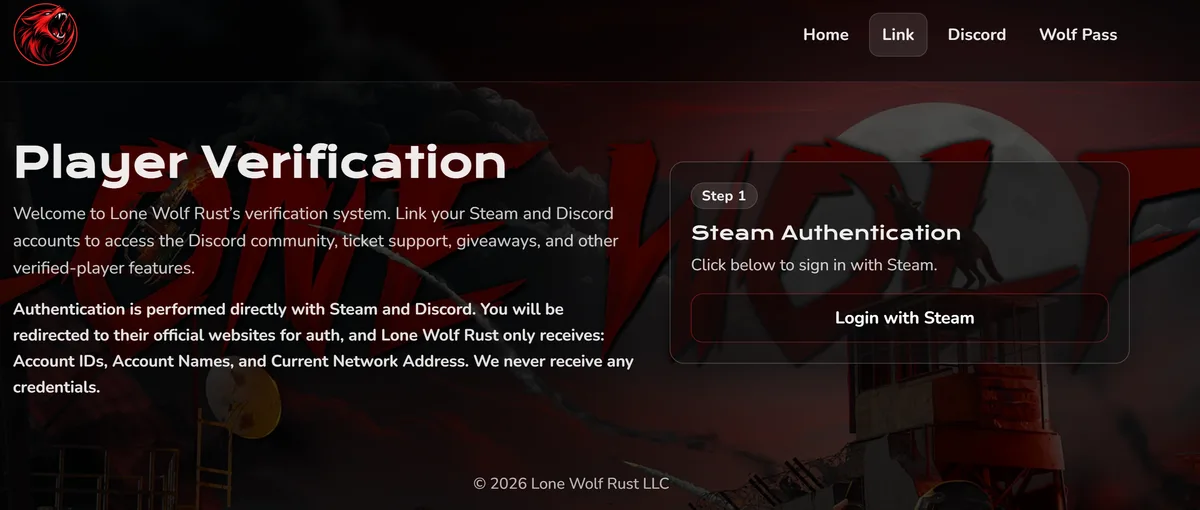
The page also states that Lone Wolf Rust does not receive your Steam or Discord passwords. Because of that, you should expect to be redirected to the official Steam and Discord authentication screens during the process.
That redirect is normal, and it is one of the clearest signs that the flow is working as intended.
Before you begin
Before starting, make sure:
- you know which Steam account you actively use for Rust on Lone Wolf Rust
- you are signed in to, or ready to sign in to, the correct Discord account
- you can complete any Steam Guard or Discord security prompts
- your browser allows redirects and pop-ups required for authentication
- you are starting from the official URL: link.lonewolfrust.gg
If you have multiple Steam or Discord accounts, take an extra minute to confirm you are about to use the right ones. Most verification problems happen because the wrong account was selected during login.
Step-by-step: how to verify
Step 1 Open the official verification portal
Go to link.lonewolfrust.gg.
You should see the Player Verification page and a Login with Steam button.
If the page looks unfamiliar, check the URL carefully before continuing.
Step 2 Click Login with Steam
When you press Login with Steam, you will be redirected away from the Lone Wolf Rust page and sent to Steam's authentication flow.
That redirect is expected.
You should not enter your Steam password into the Lone Wolf Rust website itself. Steam handles authentication directly and then returns you to the verification flow afterward.
Step 3 Sign in to the correct Steam account
On the Steam login page:
- Enter the credentials for the Steam account you actually use for Rust.
- Complete any Steam Guard confirmation or account security prompts.
- Confirm the login if Steam asks you to approve the session.
Take your time here. If you verify the wrong Steam account, your Discord link may be attached to the wrong player identity.
Step 4 Continue to Discord authorization
After Steam authentication succeeds, continue through the Lone Wolf Rust verification flow until you are prompted to authenticate with Discord.
At this stage:
- Sign in to the correct Discord account.
- Review the authorization prompt carefully.
- Approve the connection so the verification process can complete.
Just like Steam, Discord is expected to handle its own sign-in flow directly.
Step 5 Finish linking
Once both authentication steps are completed successfully, the Steam account and Discord account should be linked.
You should then receive access to Lone Wolf Rust features that depend on verified status, such as Discord access, support-related workflows, and other community systems tied to account linking.
Some changes may appear immediately, while others may take a short moment to update depending on the connected service.
What a successful verification should look like
A normal verification flow usually looks like this:
- You open the Lone Wolf Rust verification page.
- You click Login with Steam.
- You authenticate with Steam.
- You return to the Lone Wolf Rust flow.
- You authenticate with Discord.
- The site completes the link between both accounts.
- Your verified-player benefits become available.
If your experience generally matches that sequence, the system is behaving normally.
Common mistakes to avoid
Using the wrong Steam account
This is the most common problem. If you have ever shared a PC, used an alt, or switched between accounts, double-check the Steam account shown during sign-in.
Using the wrong Discord account
Many players have a personal Discord, an old Discord, or a mobile account they forgot they were logged into. Make sure the Discord account you authorize is the one you actually want tied to Lone Wolf Rust.
Closing the window too early
Do not stop after signing into Steam. Verification is not complete until both the Steam and Discord portions are finished.
Ignoring security prompts
If Steam Guard or another confirmation step appears, complete it fully before assuming the process failed.
Starting from an unofficial link
Always begin from link.lonewolfrust.gg.
If a page or login screen does not match the expected Steam or Discord flow, pause and verify the URL before proceeding.
Troubleshooting
I clicked the button and got redirected to Steam
That is expected. Lone Wolf Rust uses Steam for authentication, so the login process starts on Steam's official side.
Steam is asking for a code or extra confirmation
That is usually Steam Guard or another Steam account security requirement. Complete the prompt and continue. It does not mean the verification flow is broken.
Discord opened the wrong account
Log out of Discord or switch accounts, then restart the verification flow and authorize the correct one.
I verified the wrong Steam or Discord account
Restart the process from the beginning and carefully sign in with the correct accounts. If the wrong link has already been established and you cannot fix it by re-running the flow, open a Lone Wolf Rust support ticket.
I finished the flow but still do not have Discord access
First, retry the verification flow at link.lonewolfrust.gg and make sure both sign-ins completed successfully.
If access still does not appear:
- confirm you used the correct Steam account
- confirm you authorized the correct Discord account
- give Discord a short moment to update roles or access
- open a Lone Wolf Rust support ticket if the issue continues
The page will not load or the login keeps looping
Try the following:
- refresh the page
- use a private/incognito browser window
- sign out of the wrong Steam or Discord account first
- disable browser extensions that block redirects or scripts
- retry from the official link: link.lonewolfrust.gg
Security reminders
For safety, keep these rules in mind:
- only start from the official Lone Wolf Rust verification page
- expect to sign in through the official Steam and Discord login pages
- do not enter your password into a page pretending to be Lone Wolf Rust if it is not clearly the official Steam or Discord login flow
- review which account is currently active before approving the link
A trustworthy verification process sends you to the real authentication provider instead of collecting your credentials directly.
Quick version
- Go to link.lonewolfrust.gg.
- Click Login with Steam.
- Sign in to the correct Steam account for Rust.
- Complete any Steam Guard prompts.
- Authenticate the correct Discord account.
- Finish the linking flow.
- Confirm your verified-player access.
If something does not look right, stop and double-check which Steam and Discord accounts you are using before continuing.